Pricing & How-To
 RapBooster Growth Team
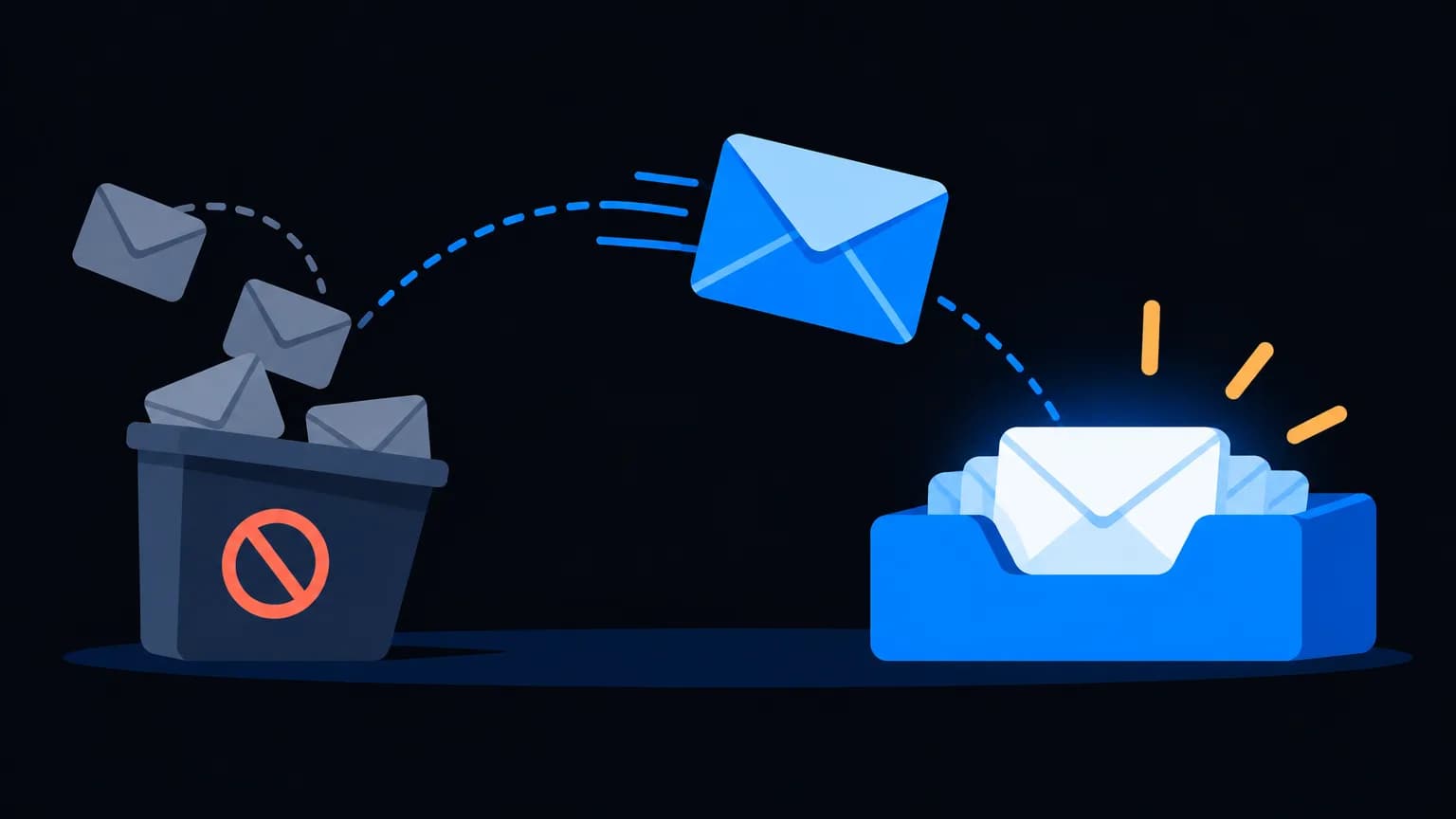
SPF tells the world which servers may send email for your domain. DKIM signs each email so receivers can verify it came from you, unaltered. DMARC ties them together: it tells receivers what to do when checks fail and sends you reports. Set them up in that order, starting DMARC in monitoring mode, and your emails become trustworthy to Gmail, Yahoo and Outlook.
SPF (Sender Policy Framework)
SPF is a TXT record on your domain listing approved senders.
Example SPF record:
Type: TXT
Host: @
Value: v=spf1 include:_spf.google.com include:spf.your-smtp-provider.com ~all
include:adds a service's servers (Google Workspace, your SMTP provider)~allmeans "soft-fail anything else";-allis stricter
Rules:
- Only one SPF record per domain. Merge the includes
- Stay under 10 DNS lookups (each include counts)
- Update it when you add or remove email services
DKIM (DomainKeys Identified Mail)
DKIM uses a key pair: your sending service signs emails with a private key, and you publish the public key in DNS.
Example DKIM record:
Type: TXT
Host: s1._domainkey
Value: v=DKIM1; k=rsa; p=MIIBIjANBgkqh...your-public-key...IDAQAB
s1is the selector; your provider tells you what to use- Each sending service needs its own DKIM key
- Use 2048-bit keys where supported
DMARC (Domain-based Message Authentication, Reporting & Conformance)
DMARC checks that the visible From domain aligns with SPF or DKIM, and sets a policy.
Example DMARC record (starting point):
Type: TXT
Host: _dmarc
Value: v=DMARC1; p=none; rua=mailto:[email protected]; fo=1
| Policy | Effect | When to use |
|---|---|---|
p=none |
Monitor only | First 2–4 weeks |
p=quarantine |
Failing mail goes to spam | Once legitimate senders pass |
p=reject |
Failing mail is blocked | Full protection against spoofing |
The setup order
- List every service that sends email as your domain: Google Workspace or Zoho Mail, your SMTP or marketing tool, CRM, helpdesk, invoicing.
- Create one SPF record that includes all of them.
- Enable DKIM in each service and add their DNS records.
- Add DMARC at
p=nonewith a reporting address. - Read reports for 2–4 weeks. Fix any legitimate service that fails.
- Move to
p=quarantine, thenp=reject.
Common mistakes
- Two SPF records: both break. Merge them into one
- Too many lookups: SPF over 10 lookups fails. Remove unused includes
- Forgot a service: your invoicing tool's emails start landing in spam after DMARC enforcement
- Wrong host field: some DNS panels auto-append your domain, so
_dmarc.yourdomain.com.yourdomain.comhappens - Jumping straight to
p=reject: you might block your own mail
How do you verify it's working?
- Send a test email to Gmail, open "Show original" and check SPF, DKIM and DMARC say PASS
- Use a DNS lookup tool to confirm the records are published
- Review DMARC aggregate reports for unknown senders
Why it matters now
Gmail and Yahoo require SPF, DKIM and DMARC for bulk senders. Without them, your campaigns are far more likely to be filtered or rejected. See Gmail & Yahoo bulk sender rules and the full deliverability guide.
Real example: a small business setup
Say brewbean.in uses Google Workspace for staff email, RapBooster with a marketing SMTP service for newsletters, and an invoicing tool for bills.
SPF (one record):
v=spf1 include:_spf.google.com include:spf.marketing-smtp.example include:spf.invoicing.example ~all
DKIM (one per service):
- Google Workspace: selector
google._domainkey - Marketing SMTP: selector from that provider (for example
s1._domainkey) - Invoicing tool: selector from that provider
DMARC (start in monitoring mode):
v=DMARC1; p=none; rua=mailto:[email protected]; fo=1
After three weeks of reports showing all three services passing, brewbean.in moves to p=quarantine, and later to p=reject.
Reading DMARC reports without a headache
DMARC aggregate reports arrive as XML files, which aren't fun to read raw. Use a DMARC reporting tool to see:
- Which IPs and services send as your domain
- Whether each passes SPF, DKIM and alignment
- Volumes by source
Unknown sources are either a service you forgot or someone spoofing you, and both need attention.
Subdomains: a smart trick
Many brands send marketing from a subdomain like news.brand.com and keep the main domain for staff and transactional email. That separates reputations: if a campaign draws complaints, your invoices and staff emails are protected. Each subdomain needs its own SPF and DKIM, and DMARC can be set per subdomain.
Troubleshooting quick table
| Symptom | Likely cause | Fix |
|---|---|---|
| SPF "permerror" | Two SPF records or over 10 lookups | Merge records; remove unused includes |
| DKIM "fail" | Wrong selector or unpublished key | Recheck the DNS host and value |
| DMARC fail but SPF and DKIM pass | Alignment mismatch | Sign with your own domain |
| Emails fine at Gmail, spam at Outlook | Reputation or content | Check Outlook sender tools; warm up |
The bottom line
Three DNS records, about thirty minutes of work, and a big boost in trust. Set up SPF, DKIM and DMARC in order, monitor, then enforce. RapBooster's free SPF/DKIM/DMARC generator tool can build the records for you.

 Questions first? Chat with us on WhatsApp